SIMVANA Nursing uses hand tracking for it’s controls. The Meta controllers are not used while in SIMVANA Nursing.
If you are jumping into SIMVANA Nursing for the first time, watch this video to get familiarized with all the controls.
Menu Interactions
To interact with the Main Menu, point the laser coming out of your hand at the menu and pinch your index and thumb together to select the highlighted item.
Locomotion
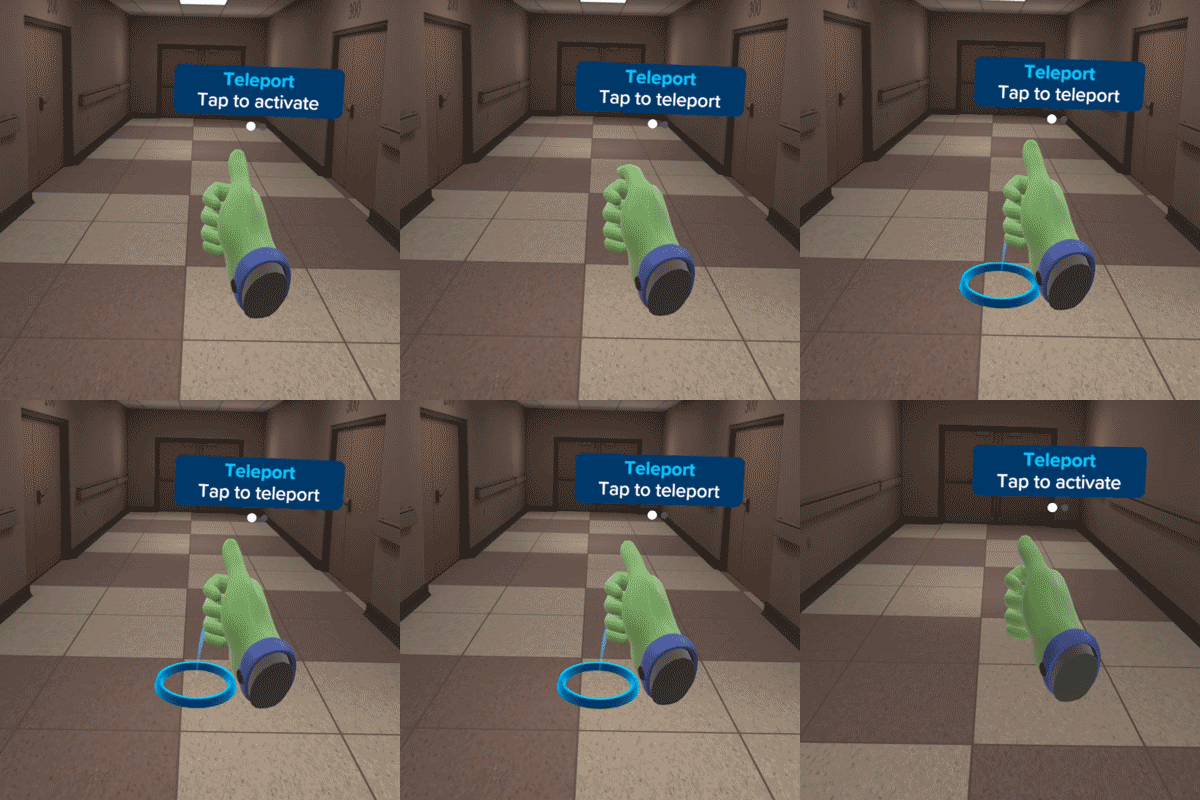
You can move around in SIMVANA Nursing by teleporting
- Form your hand into a thumbs up gesture.
- Swipe your thumb across your index finger to ensure the active tool is “teleport”
- Tap your thumb on your index finger to activate the teleport ring
- Tap again to teleport to that point. Once in the general area you would like to be, you can move around by taking steps in the real world. Be careful to stay within your VR play space when moving.
Object Interactions
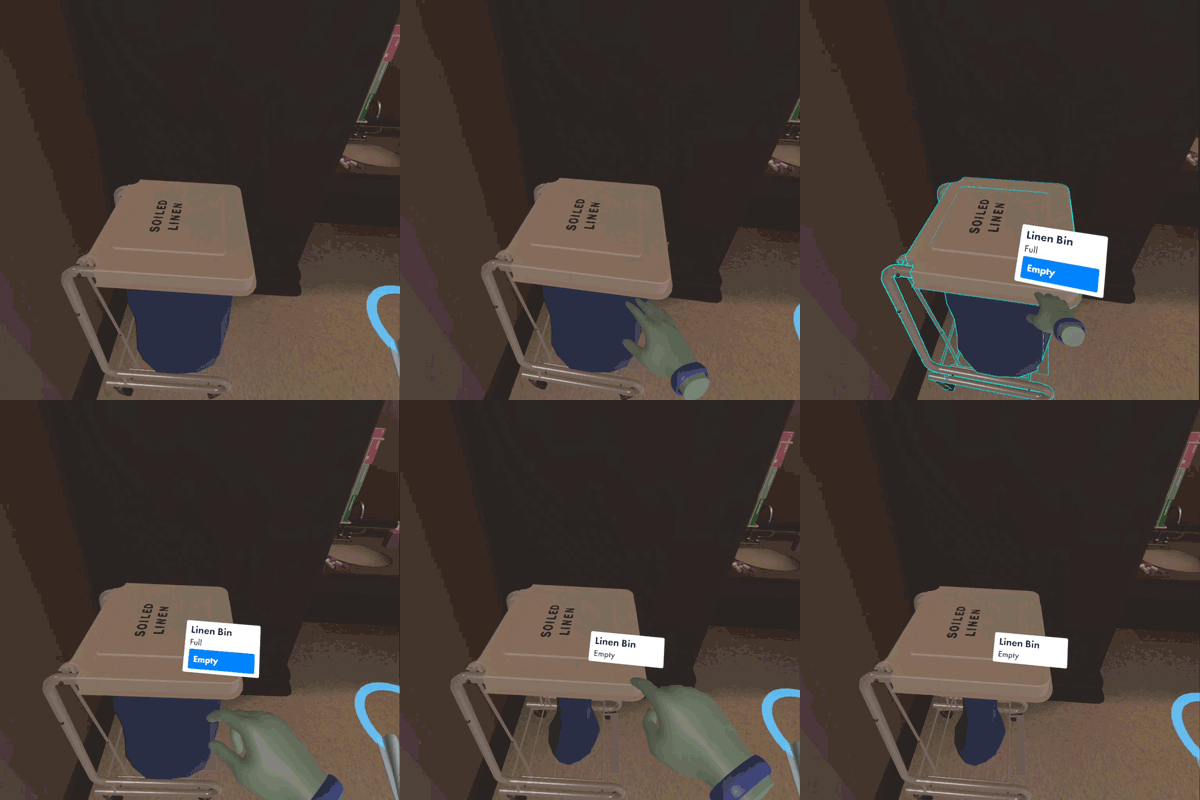
Most objects can be interacted with via a pop up user interface. To interact with objects:
- Place your hand inside the object. The object will highlight blue
- A pop up tooltip will appear. Tap which action you would like to perform to interact with the object.
Gripping Objects
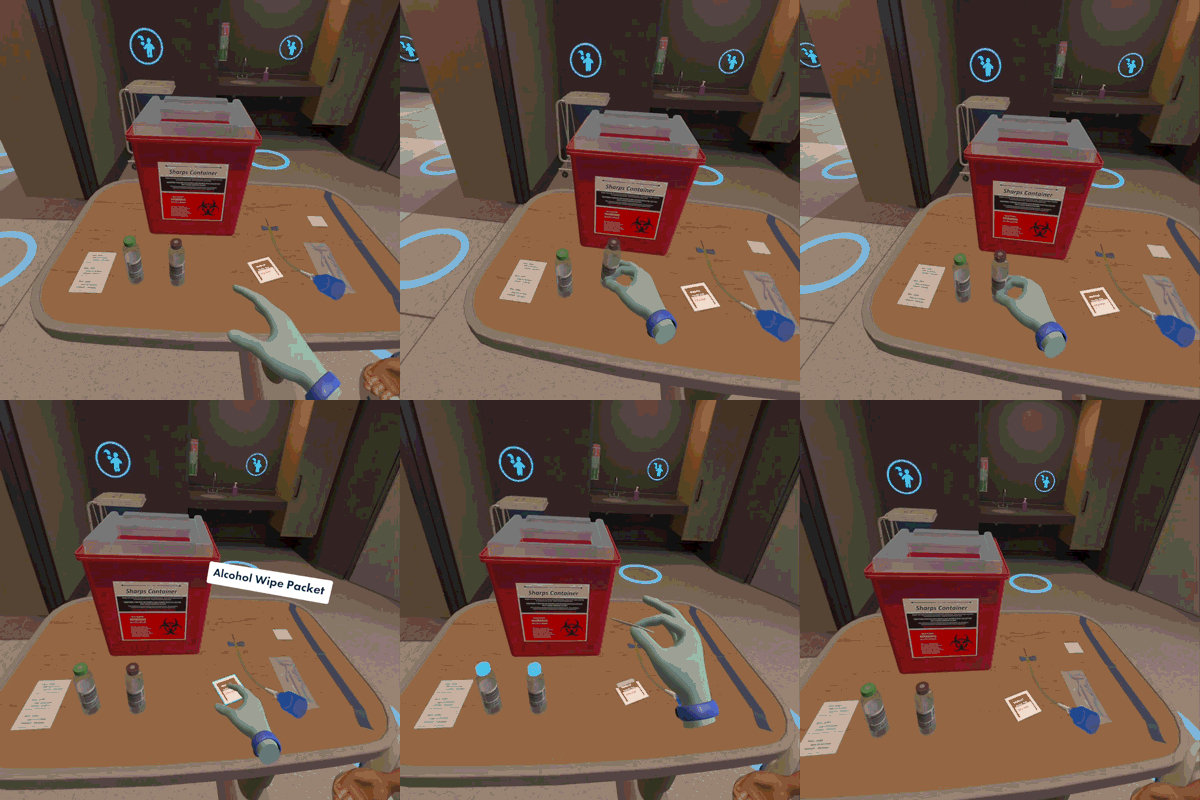
Some objects can be gripped and moved around the environment. To grip objects:
- Place your hand inside the object. The object will highlight blue.
- Pinch and hold the object.
- While you pinch the object you will be able to pick up and move the object.
- To release the object, let go of your pinch gesture
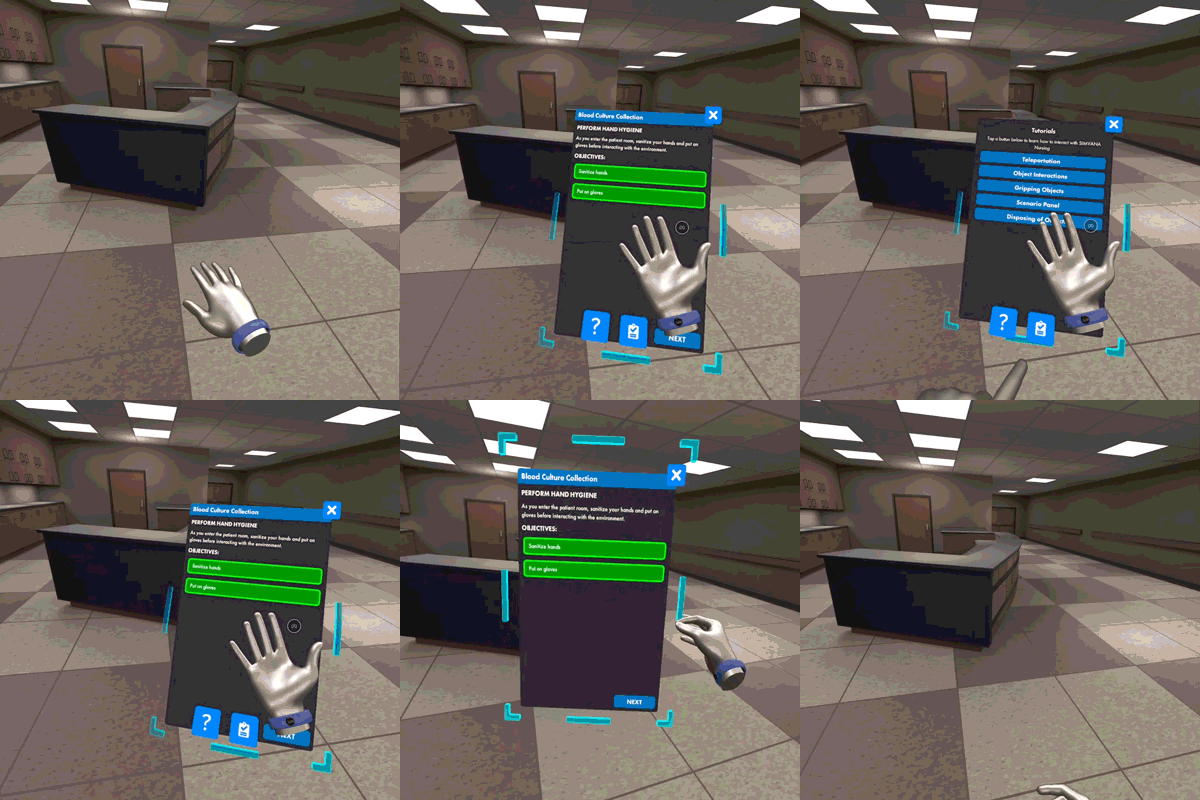
Scenario Panel
All of the learning content will appear on the scenario panel. To make the scenario panel appear:
- Face right palm toward your face.
- Tap the scenario button on your wristband. The scenario panel will appear in front of you.
- You can also tap the tutorial panel to make that appear
- Pinch the side of the panel to move it around
Conversations
Some scenarios require you to speak with the patient. To speak with the patient:
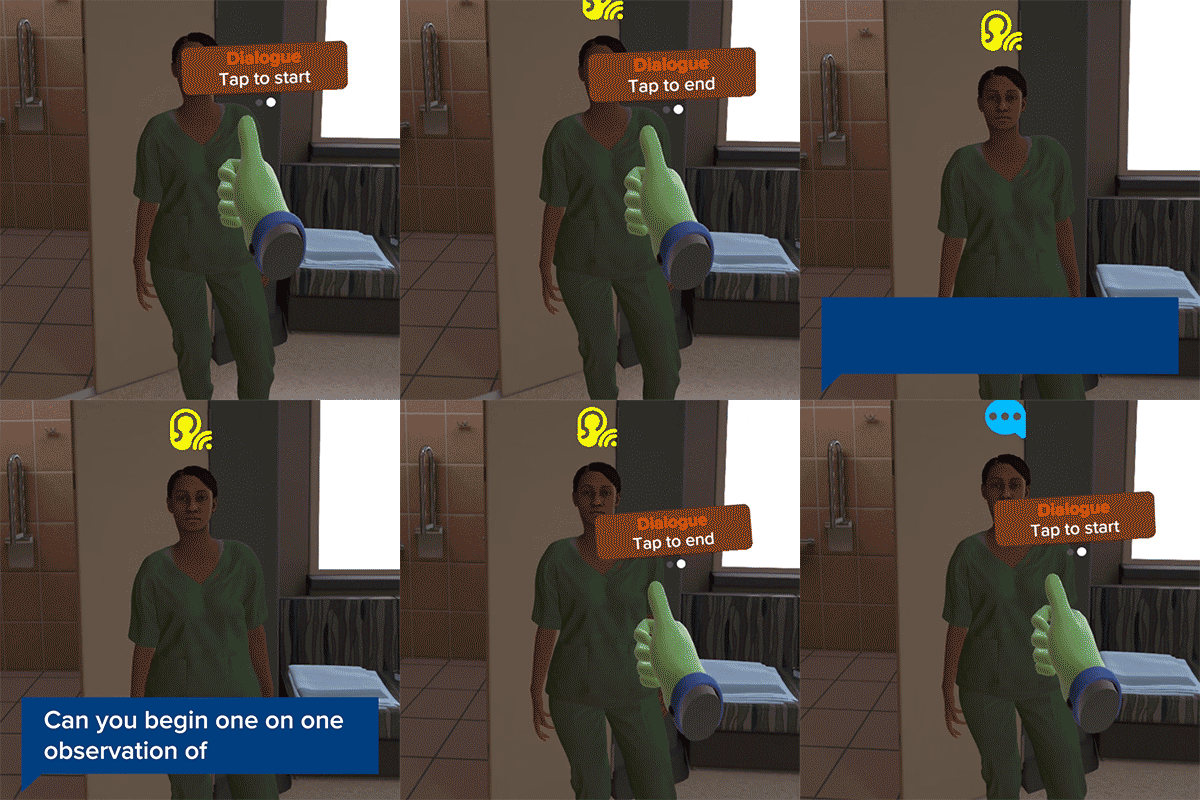
- Form your hand into a thumbs up gesture
- Swipe your thumb across your index finger to ensure the “Dialog” tool is active
- While looking at an avatar, tap your thumb to begin a converation
- Tap your thumb again to end the conversation.