
New to VR? This short primer covers the basics you’ll use in SIMVANA: input types (controllers and hand tracking), how to open the universal menu, and where to practice with the in-headset Help & Tips app.
Input types: controllers vs. hand tracking
There are two primary types of input in VR applications: controllers and hand tracking.
Controllers
What’s on every controller
- Thumbstick: Navigate/turn in many apps.
- Index trigger (front): Often used to “select” items.
- Grip button (side): Commonly used to grab/hold objects.
Right controller
- Meta button: Opens the universal menu.
- A & B: Typically not used in SIMVANA apps
Left controller
- Menu button: Opens in-app menus (where supported).
- X & Y: Typically not used in SIMVANA apps
Hand tracking gestures
Point & Pinch
What it’s used for: Making selections and opening apps
How to do it: When the cursor appears, point your hand at what you want to select. Then, pinch your thumb and finger together to select.

Pinch & Drag
What it’s used for: Scrolling up, down, left, or right
How to do it: Pinch your fingers inward. While still pinched inward, move your hand up, down, left or right to scroll. When you’re done scrolling, release.

Palm Pinch
What it’s used for: Brings you back to your Universal Menu.
How to do it: Look at your palm at eye level, then hold your thumb and index finger together until Oculus button fills, then release.

Touch
What it’s used for: Typing and directly interacting
How to do it: Directly tap UI elements like keyboard keys with your fingers to interact with them. Or grab windows with your thumb and index finger to move them.
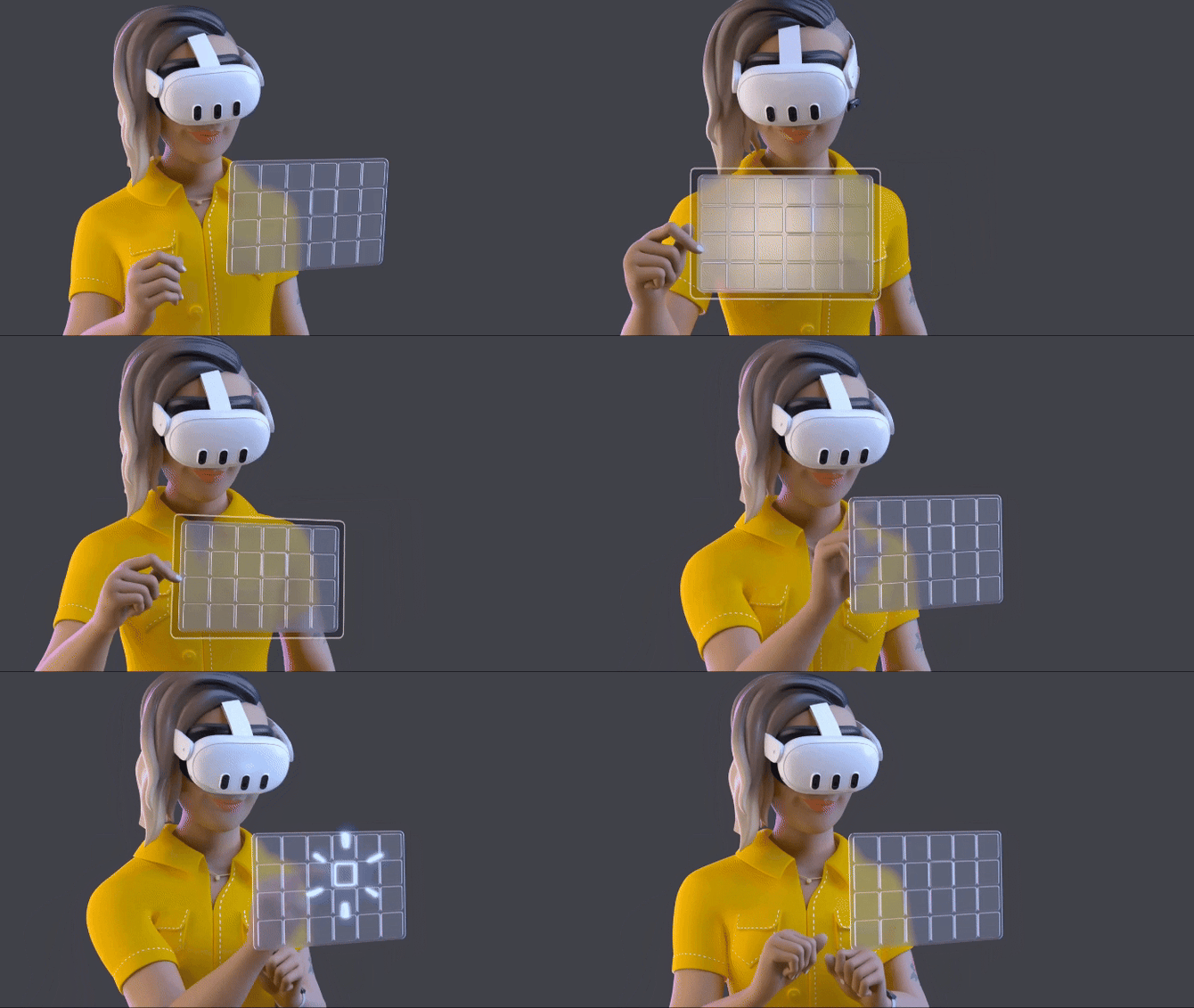
Opening the universal menu
The universal menu is your home base for Quick Settings, app library, casting, Wi-Fi, and more.
Controllers: Press the Meta button on the right controller to open the universal menu.
Hand Tracking: Use the Palm Pinch gesture: look at your palm at eye level, then touch and hold your thumb and index finger together until the menu appears.
From the universal menu, selecting the clock on the left opens Quick Settings (useful for Wi-Fi, Guardian, casting, etc.). (Meta)
Practice with the “Help & Tips” app
The Help & Tips app (found in your App Library) is a great place to learn VR basics at your own pace. It includes:
- Tutorials for common actions (e.g., hand tracking and Passthrough).
- A fit & comfort walkthrough.
- Links to beginner experiences to build confidence.